
How to Create Your Gangsheet
First Time Using Our Gangsheet Builder?
If this is your first time creating a gangsheet, we recommend reading the instructions below and watching the tutorial video before you begin. It may feel a little different at first, but once you start using it, you’ll find it quick and easy.
Step 1 – Select Your Size
Choose the size you require:
- A4
- A3
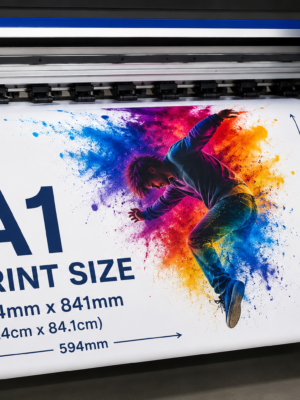
- A1 (size of x2 A3)
- A2 (Size of x4 A3)
Once you have selected your size, click the PINK “Create Design” button below that option.
This will open a new browser tab called Antigro Designer.
Step 2 – Upload Your Artwork
Click the Uploads Files button on the top left of the designer and upload your artwork.
For best results:
✔ Use high-resolution PNG files
✔ Minimum recommended resolution: 300 DPI
✔ Ensure backgrounds have already been removed where required
✔ Check your artwork carefully before uploading
DPI Warnings
• Orange warning = Artwork is between 250 DPI and 300 DPI
• Red warning = Artwork is below 250 DPI
Remember: Garbage in = Garbage out. The quality of your print depends on the quality of the file supplied.
Step 3 – Arrange Your Gangsheet
Arrange your designs within the selected sheet size.
Important: Keep all artwork inside the pink dashed boundary lines. Designs placed outside these lines may be cut off during printing.
Designer Features
Once your artwork is uploaded, you can:
• Drag and drop images onto the canvas
• Resize artwork
• Rotate designs
• Flip artwork horizontally or vertically
• Move designs forward or backward
• Delete unwanted artwork
• Duplicate designs
• Use Auto Fill to create multiple copies with custom spacing
When using Auto Fill, ensure “Keep in Safe Zone” remains enabled.
Background Removal Tool
The designer includes a background removal feature.
Please note that, like many automatic background removal tools, it may remove parts of the design that you wish to keep. Always inspect your artwork carefully before confirming.
Step 4 – Confirm Your Design
Once you are happy with your layout:
- Click the green CONFIRM button in the top right corner.
- Click Confirm My Designs.
- Enter your email address.
- Click Confirm My Designs again.
- Wait for the automatic redirect or click Redirect Now.
Step 5 – Complete Checkout
You will be returned to your shopping cart where you can complete the normal checkout process.
Save Your Design for Later
You can return to your design at a later stage by:
• Clicking the Save button in the designer, or
• Copying the URL from your browser (the link contains your design ID)
Creating an account is recommended if you would like access to your previous designs and orders.
IMPORTANT: We print exactly what you upload. Please ensure your artwork is correctly sized, high resolution (300 DPI recommended), and print-ready before confirming your design.
Important Information
• We print files exactly as supplied.
• We do not resize, modify, edit, or correct artwork.
• We do not adjust colours or create spot colour corrections.
• We are not responsible for incorrect sizing supplied by the customer.
• We are not responsible for low-resolution artwork or poor-quality images.
• Once a design has been submitted and confirmed through the Gangsheet Builder, neither the customer nor SA Sublimation Blanks can make changes, corrections, or adjustments to the artwork. Please check your design carefully before confirming.
• Any errors, omissions, spelling mistakes, sizing issues, or artwork problems contained within the submitted design remain the responsibility of the customer.
• Designs submitted via email will no longer be accepted.
Our Gangsheet Builder is now the required method for submitting DTF print-ready artwork.
Application Instructions
For best results, apply your sticker to a clean, smooth and dry surface.
Suitable surfaces include:
✔ Glass
✔ Acrylic
✔ Metal
✔ Plastic
✔ Painted surfaces
✔ Ceramic
✔ Smooth wood
Before Application
• Ensure the surface is clean and free from dust, grease, wax and oils.
• Wipe the surface with a suitable cleaner or isopropyl alcohol and allow it to dry completely.
• Do not apply to dirty, wet, textured or peeling surfaces.
Application
- Position the sticker where required.
- Peel the sticker from the backing material.
- Apply the sticker starting from one edge and work across the surface.
- Use a squeegee or soft cloth to smooth the sticker from the centre outwards, removing any trapped air.
After Application
• Allow the adhesive to bond for 24–48 hours before cleaning or exposing the sticker to harsh conditions.
• Avoid excessive rubbing or pressure washing directly on the edges of the sticker.
Please note that adhesion may vary depending on the surface, coating, texture and environmental conditions.